Nathan Zeldes has published an article in IEEE Spectrum on Infoglut:
“Information, the very thing that makes it possible to be an engineer, a doctor, a lawyer, or any other kind of modern information worker, is threatening our ability to do our work. How’s that for irony?”
Definitely worth a read if you’re interested in how email and information overload are killing our productivity. And there’s a mention of ClearContext to boot.
In our post v5: Streamlined & Smarter we mentioned that we plan to limit the display of FolderContext to Project Dashboards, removing it from individual folders. Given recent feedback, we’d like to know how you use FolderContext. Please take the poll below and post any additional comments you would like to share. Thanks!
A quick thanks! to everyone who signed up for the v5 beta of our Outlook organization add-in. If you sent us a note, we have added your email to the beta list and will let you know when a download is available. In the meantime, here’s a review of what's coming in our v5 release:
The Succeed step of the ClearContext Daily Workflow is the ultimate goal of the process. You've identified your priorities for the day and have managed your Inbox. Now, throughout the day, succeed by focusing on your work rather than your email:
Turn off new mail notifications via Do Not Disturb so that you can work on your tasks without interruption.
Open the ClearContext Dashboard and select a project to work on via the Topic drop down. Work on your most important tasks for the project.
To stay on top of email throughout the day, sort your Inbox by priority (ClearContext > Inbox Views) and review only your highest priority messages (in red and blue) as needed.
Use the MessageContext to see emails, appointments and other related tasks to get the full context for the item you are working on.
One note on the Prioritized step above – if you look at a message during this phase, make sure that you act on any message you open just as you would in the manage phase. You should strive to only touch an Inbox message once.
By completing the Identify and Manage steps previously, you are free to focus on the work that is most important to you while staying in control of your email.
Posted by brad at 10:25 am on September 11th, 2009.
Categories: ims, succeed, tips.
Once you have finished identifying the day's priorities, move on to the Manage phase of the ClearContext Daily Workflow. Twice daily (or some other specified interval based on email response time requirements), starting with your highest priority email first, quickly act on each Inbox message or determine when you want to act on it:
Act Immediately?
If the message doesn't have a Topic assigned to it, assign one. IMS will link all future emails, tasks and appointments to this Topic.
Reply to the message if you can do so in a minute or two. IMS can automatically file the original message to a Topic folder for you.
Delegate the email to someone else as appropriate.
If the message doesn't have a Topic assigned to it, assign one. IMS will link all future emails, tasks and appointments to this Topic.
Defer messages that you aren't ready to deal with to a later date.
Create a task from email that requires further action on your part.
Schedule appointments from messages that require a meeting.
No action required?
Unsubscribe from mailing lists or long email threads that you have no interest in.
Delete messages that you don't need to keep for archiving purposes.
This phase is the bridge that moves you from sizing up your day to working on your most important projects. Consider it blocking and tackling – quickly and efficiently move through your Inbox and put messages onto your calendar or your task list. The end result will be a cleared Inbox and a prioritized task list, allowing you to focus on your work rather than your email.
Posted by brad at 8:21 am on September 10th, 2009.
Categories: ims, manage, tips.
Taking this time in the morning to get your priorities in place is the key to a productive day. Before you move on to manage your Inbox for the first time, work on one or two of your most important tasks.
Posted by brad at 10:15 am on September 9th, 2009.
Categories: identify, ims, tips.
The ClearContext Daily Workflow is a three step process for managing Outlook that will save an hour or more per day. We developed these best practices in conjunction with productivity experts and our very passionate customer base to help overloaded individuals empty their inbox and get on top of their workday:
First thing in the morning, identify the day's priorities:
Review your calendar
Review your daily task list
Review your alerts
Twice daily, manage your Inbox:
Quickly review each message and determine when you need to act on it:
Act immediately? Reply, Delegate, or Review and File
Act later? Defer, Create a Task or Appointments
No action required? Unsubscribe or Delete
Throughout the day, succeed by focusing on what's important:
Work on your tasks by project
Review high priority messages only
View all related information on To Do's
Over the next few days, we will review each step in more detail.
Manage your inbox, spending a minute or two on each conversation. Delete, Reply, File, Defer, Unsubscribe or create a Task or Appointment and quickly move on.
Yesterday’s Gmail outage exposed the #1 reason to use desktop email clients over webmail. Jim Kissell at MacWorld has written six OTHER reasons that desktop email clients are superior to webmail clients, including better integration with other apps, attachment management and rule creation. Read the article here.
Posted by brad at 11:23 am on September 3rd, 2009.
Categories: email.

 Loading ...


 Once you have finished


 The first step in the

 The
The 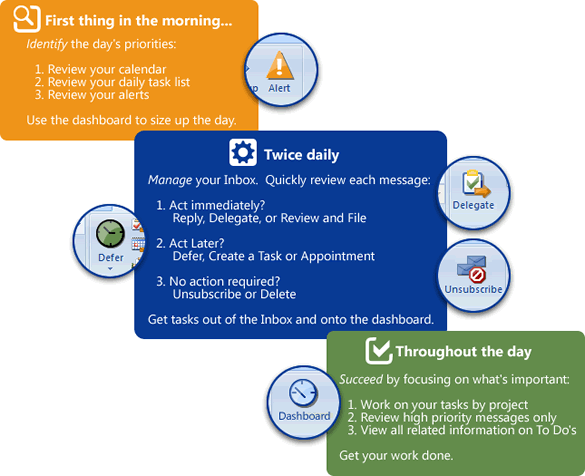
 First thing in the morning, identify the day's priorities:
 Twice daily, manage your Inbox:
 Throughout the day, succeed by focusing on what's important: