Posts categorized “outlook”.

The Office 2010 Team on Understanding 64-Bit Office

image The Office 2010 team has posted comprehensive information regarding the 64-Bit release of Office, including details on who should install Office 2010 x64:

“If you’re trying to decide between 32-bit and 64-bit Office, you should ask yourself what your needs are. Are you an Excel power user working with huge amounts of data? Do you need to work with file sizes greater than 2 GB? If so, then you would benefit from 64-bit Office being able to utilize more memory. If not, we’re recommending 32-bit Office 2010 as the default installation on both 32-bit and 64-bit Windows mainly due to compatibility with existing 32-bit controls, add-ins, and VBA.”

Additional detail:

“Both 32-bit and 64-bit versions of Office are largely indistinguishable, except that 64-bit Office has a much higher memory capacity. As mentioned above, the extra memory capacity comes at the cost of some compatibility with existing extensions to Office, such as 32-bit versions of ActiveX Controls and some 3rd party add-ins, in addition to 32-bit versions of programs that interface directly with Office. New versions of these extensions will need to be obtained, and it will take some time for 64-bit compatible extensions to be made available.

For these reasons, we recommend running 32-bit Office 2010 even on 64-bit Windows operating systems for better compatibility. On 64-bit Windows, more applications and documents may be opened at once, and switching among them will be faster because the machine can have more physical memory for the processes to share. When the 64-bit ecosystem for Office is more mature, you’ll be able to easily migrate to 64-bit Office!”

In the near term, if you want to run ClearContext in Outlook 2010, you should install the 32-bit version of Office 2010.  For information on future ClearContext support for 2010 x64, see this forum post.

Office 2010 Beta Patch

imageFor those of your running Outlook 2010; the Outlook team has posted a patch to fix a message size bug in Outlook 2010.  We haven’t noticed the issue here, but it must be a pretty nasty bug for MSFT to decide to release a patch to pre-release software.  Details and a download here.

Trying Outlook 2010? Try the ClearContext v5 beta

imageIf you are trying out the Outlook 2010 beta, please give the ClearContext v5.0 beta – with 2010 support – a spin as well.  Details and download available here.

ClearContext v5: Streamlined & Smarter

We’re making ClearContext simpler, faster and smarter.  Previously we discussed v5 single-click filing and message prioritization.  Here are a few other near term changes coming in v5.0.

Smarter Threading

A frequent feature request is to improve the accuracy of message conversation threading.  In v4 and earlier, ClearContext uses subject name to link messages together.  In v5 ClearContext will use Outlook’s conversation ID (when available) for threading.  For those of you on mail servers that utilize this ID, the result will be smarter, more accurate conversation threading.  Subject-based threading will be used in cases where the ID is not available, most notably when receiving mail from some webmail services outside of Exchange.

image Multiple Mail File Support

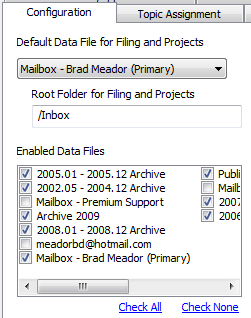
In v5 we are removing the filing limitation of one primary and one secondary mail file.  ClearContext will recognize all of your open mail files, allowing filing to all open PSTs.

Office 2010

Office 2010 support will include full ribbon functionality in the explorer (Inbox) and adaptation of custom UI elements (Dashboard, Scorecard, etc.).  A test version with Office 2010 32bit support will be available in Q4.  We plan to implement 64bit support in a future release, timing TBD.

Streamlined Features

We are removing some features in v5 to simplify the interface, improve performance and focus on our core capabilities.  In particular:

  • FolderContext will no longer appear in each folder.  This information will still be available via Project Dashboards.
  • Conversation Priority will no longer be supported.  Messages will still be automatically prioritized as they are received, but we will no longer support marking individual threads as important.
  • Alerts will be removed in v5.0.  Pending feedback, we may bring this feature back in another form for a future 5.x release.

Improved Infrastructure\Performance

Many of the changes we have previously discussed result in improved performance.  In particular, startup is faster, folders open more quickly, and message conflicts are minimized.  With this improved infrastructure, the product will better support multiple machine use and mobile device access and we will be on track to expand beyond Exchange and POP support in future ClearContext releases.

v5.x

The changes we have discussed so far are all in our initial v5.0 release.  Future v5.x releases will include an overhaul of the project management features in the Dashboard, improved statistics and measurement and much more.  Keep an eye on the blog for future detail.

All v4 purchases made after August 1, 2009 and all ClearContext Connect subscribers will receive a complimentary upgrade to v5.  If you haven’t already signed up for the v5 beta, send an email to beta at clearcontext dot com.  The beta schedule isn’t finalized yet, but we will let you know when a download is available.

Lifehacker’s Guide to outlook Performance

For those looking to squeeze more performance out of Outlook, the How-To Geek has published a comprehensive guide to making Outlook faster on Lifehacker.   This is right in line with our own performance improvement recommendations.

ClearContext v5: SIMPLER, FASTER, SMARTER

image Our next major release, ClearContext v5, will be about making the email management features our users have come to depend faster, more automated, and more intuitive.  We've made many incremental improvements to ClearContext for Outlook over the past year, as well as some major additions like our statistics and effectiveness components.  But we've also been working hard on the next major version of ClearContext for Outlook, and we're excited to share our plans with you. 

Our development efforts are concentrated on four areas:

  • Infrastructure & Performance
  • Message Filing & Organization
  • Project Management & Dashboards
  • Statistics & Effectiveness Measurement

Please note that we are still early in the release cycle, so a number of these details are likely to change.  We're very interested in hearing feedback about which features are most critical for you.

image Infrastructure & Performance

We’ve re-architected the ClearContext infrastructure to be more flexible with lower overhead.  This will provide a number of key benefits including:

  • Improved performance
  • Compatibility with more mail configurations
  • Support for the upcoming Outlook 2010 release
image Message Filing & Organization

Inbox management is a critical part of everyone’s day.  ClearContext v5 will make filing and organization smarter and more automated.  Key improvements include:

  • Smarter topic assignment and filing
  • Flexible topic management
  • Simplified message prioritization
  • Additional automated message filing

image Project Management & Dashboards

ClearContext v5 project management functionality will include a much stronger focus on tasks and actions, and make project dashboards much more flexible:

  • Improved summary information on projects and actions
  • Flexible project creation and organization
  • Integration of additional information
  • Additional task management and prioritization
  • Project archiving and reporting
  • Improved search and filtering

image Statistics & Effectiveness Measurement

Our initial release of statistics and effectiveness measurement focuses very heavily on email – volumes, response times, and performance.  We’re continuing to gather feedback on the data you find most useful in understanding your email activity, as well as continuing to refine the ways we measure your email management effectiveness.  If you haven’t already, please visit ClearContext Online and let us know what you would like to see there.

In addition to email, ClearContext v5 will expand elements of the statistics and effectiveness modules into areas such as tasks, appointments, and project-focused measurement.

image Next steps and beta

In order to deploy these features and enhancements as quickly as possible, we are organizing the v5 release into several stages. The initial ClearContext 5.0 release will focus on the infrastructure and filing/organization features. Additional 5.x releases will focus on the project management and statistics areas.

We haven’t finalized release dates and beta schedule yet.  Stay tuned to the blog for more details.  If you’re interested in being on the beta list, please send an email to beta at clearcontext dot com.  Thanks for your interest!

ClearContext Brings Outlook 2010 Features to Outlook 2003 & 2007 Users

It's been a long wait, but the Office team is finally giving the public a preview of Outlook 2010, slated for release in the first half of next year.  Check out the end of this post to read more about Outlook 2010.

But why wait for 2010 when ClearContext Personal and Pro have Outlook 2003 and 2007 users covered already?  Here’s a breakdown of some of the new Outlook 2010 features and their ClearContext counterparts.

Ignore Thread \ Unsubscribe

Outlook 2010’s new Ignore Thread feature moves all messages in the current conversation to the Deleted Items folder.  Future messages are also automatically removed from the Inbox.  ClearContext’s Unsubscribe performs the same function, plus lets you review the messages later or resubscribe to a conversation.

Conversation View \ MessageContext

RelatedViewThe new default view for Outlook 2010 is a conversation view that groups all related messages together in the Inbox.  ClearContext provides a similar threaded conversation view for the Inbox.  More importantly, the MessageContext window displays the entire conversation for each open message.  In Pro, it also shows any tasks or appointments generated during the course of the current conversation.

Quick Steps

Quick Steps in Outlook 2010 are a way to set up macros for commonly used multi-step functions.  ClearContext filing features provide many common functions without the need to create any macros — including single click filing (message or thread),  automatic message filing when replying (or creating tasks and appointments), and automatic filing based on email history.

Product Roadmap

It's nice to see productivity features like these making their way into Outlook – but at ClearContext we're already working on the next generation of more intuitive, powerful and automated productivity features for email.  Tomorrow we’ll post our full product roadmap, highlighting our continued mission to help email overloaded individuals more effectively prioritize, organize and manage their email and projects within Outlook.

More Info on Outlook 2010

Here’s the official Outlook 2010 preview video:

Here’s Robert Scoble’s longer interview with Chris Bryant, Group Product Manager for the Office 2010 team.

Office 2007 Users: Download SP2 Today

The Office Team has released Office 2007 Service Pack 2 to the general public.  Read about Outlook-specific changes here and download via Windows Update.

We have been running beta versions of SP2 in house for several months now and have found that it greatly improves performance and reliability.  I highly recommend that you upgrade at your earliest convenience. 

If you haven’t already installed the February Cumulative Update, SP2 will take several minutes to convert your Outlook mail file at startup.  Trust me, it’s worth the wait.

Outlook Performance and Mail File Health

Many of Outlook’s performance problems can be traced to a corrupted or oversized mail file.  Here are some tips for keeping Outlook running in tip/top shape:

1. Run SCANPST against your offline mail file

Close Outlook and run Microsoft’s SCANPST utility against your mail file:

  1. Find SCANPST via Programs > Accessories > System Tools or use Start > Search or Start > Find to locate it on your hard drive.
  2. Once open, you will need to find the location of your Outlook mail files.  The default location for your Outlook mail file is in Outlook’s local settings directory:
    • Windows XP: C:\Documents and Settings\{USER_NAME}\Local Settings\Application Data\Microsoft\Outlook.
    • Windows Vista: C:\Users\{USER_NAME}\AppData\Local\Microsoft\Outlook.
  3. Scan your primary outlook.OST (Exchange) or outlook.PST (POP) mail file and allow it to repair any issues it finds.
  4. Repeat this process until SCANPST no longer reports errors.

We recommend performing the same process on open archive PST files as well.  For additional detail on SCANPST and it’s use, see this excellent SlipStick post.

2. Use archive to get (and keep) your mail file size down

Use archive to keep your primary mail file size below 1 GB.  To check your file size, right click it in your Outlook folder list, select Properties and click Folder Size.  We suggest you archive by date:

  1. Select File > Archive from the Outlook menu.
  2. Under Archive this folder and all subfolders, click your primary mail box.
  3. Select a date after Archive items older than.  We suggest 6 months or less.
  4. Select an archive file.  Outlook will suggest archive.pst in your Outlook local settings directory.  Remember the location of this file.
  5. Click OK and Outlook will move your messages from your primary mail file to the archive file.  Watch the status of this process in the bottom right hand corner of Outlook.
  6. If the file is not visible in the Outlook folder list, open it via File > Open > Outlook Data File.
  7. Once complete, compact your primary mail file to further increase performance.

Repeat this process on a regular basis to keep your mail file healthy and performance snappy.

3. Create a new profile in Outlook and start with a fresh mail file

If you have tried the above and are still experiencing issues, try using a fresh new mail file as your primary mail file.  The easiest way to do this is to close Outlook and create a new profile via Control Panel > Mail.

Exchange Users

When you first first open your new profile, Outlook will rebuild your mail file from scratch.  Expect performance to be slow until Outlook updates all folders.

POP Users

Once you get your new profile up and running, your mail file will be empty.  Add your old mail file as a separate data file via File > Open > Outlook Data File.  It’s likely called outlook.pst or some variation in the default Outlook local settings directory.  You can also use File > Import & Export to import your old messages into the new mail file.

* Other performance tips

Here are a few additional performance tips:

  1. Exchange users should run in Cached Exchange Mode (Outlook’s default) rather than direct, online.  See our General Troubleshooting tips for detail.
  2. Outlook 2007 users should disable RSS feeds if they aren’t using them:
    • Navigate to Tools > Options > Other
    • Click Advanced Options
    • Uncheck Sync RSS Feeds to the Common Feed List
    • Exit the options dialogs
  3. Update to the latest Windows and Office patches via Windows Update.  Outlook 2007 users should install the February Cumulative Update.
  4. Disable other add-ins to determine if they are the source of your problem.

If you are still experiencing issues, see our Troubleshooting Guide for more tips and tricks.

image A video tutorial and permanent help link is available on our Outlook Performance and Mail File Health help page.

Outlook February Cumulative Update

The Microsoft Team has posted a FAQ for the Outlook 2007 February Cumulative Update.  The extended release notes for the February CU are here.  Bottom line, if you run Outlook 2007, you should install this update.  Outlook performance is greatly improved and the app shuts down more elegantly. 

One warning – your mail files will go through a conversion process the first time you open Outlook.  This can take a considerable amount of time if you have gigs of mail available in Outlook, so make sure you upgrade when you have some free time to let Outlook complete the conversion.

You have to jump through a couple of hoops to download, but it’s worth it.  Go here and click View and Request hotfix downloads:

image

 Log in.