Is your inbox stuffed with Facebook updates, Linked in requests, shopping offers, newsletters and all manner of flotsam? Do those emails coming in obscure the emails you need to deal with, or even worse distract and pull you away from things you need to get done? Some sources estimate that more than 80% of emails received are these types of automated, low priority messages.
ClearContext Autofile can help thin out this morass of non-urgent email. AutoFile quickly and automatically declutters your inbox so that you can focus on what’s important and get things done. Out of the box, Autofile has built in filing rules for the many common sources of automated email including Facebook, Twitter, Tumblr, LinkedIn and Evite and many more. Additionally, additional sources of unimportant email you receive can be added instantly with one click – diverting all future email out of your Inbox.
ClearContext reports on these AutoFiled emails once a day in a digest, so they don’t get lost or forgotten. Instead, you can review the list of these emails efficiently at the time best for you. It’s hard enough keeping up with the constant stream of emails arriving in your Inbox without all the distractions – ClearContext can help condense down your incoming messages to those that are most important.
Posted by ClearContext at 2:28 pm on September 26th, 2016.
Categories: clearcontext, daily_workflow, productivity.
Do you have scores of emails in your inbox spanning the last decade? Or something close? Do you start to feel anxiety every time you open your inbox because there are so many emails? Do emails that don’t get answered immediately sink into the swamp that is your inbox?
This blog post is for you! First create archive folders for the old stuff. Decide what outdated set of old emails you don’t need to deal with. It might be last years emails or emails older than this month. Sort emails by date, create a folder/folders for the archives and drag and drop all the emails that belong in the archive folder/folders. If you need to find something in the archive folders later, you can use the Outlook search functionality.
Ok, now you are only dealing with semi-current emails. This is where ClearContext really shines because of its awesome one click filing and email processing functionality. Go through each email from top of your inbox to bottom and decide what to do with it. If action is needed, do the action now, create a task or appointment from the email, delegate it, or defer it out of your Inbox for later. Next either delete the email if no longer needed, or file it with the awesome one click ClearContext File button. The File button will suggest a folder based upon where you have filed similar messages to in the past. Or you can select a different new or existing folder by clicking the down arrow. You can even file whole conversations with one click and have the option to automatically file the original message while responding to or using ClearContext actions on an email.
ClearContext one click filing and email processing is pretty nifty and it will have you on your way to inbox zero in no time.
Posted by ClearContext at 10:29 am on May 9th, 2016.
Categories: clearcontext, daily_workflow, manage, tips.
We recommend the following best practices for managing your workday with ClearContext:

 Identify
Start your workday by identifying what you need to focus on.

Review today’s meetings and appointments. Reschedule any conflicts.

Review your Tasks and Actions for the day in the ClearContext Dashboard. Adjust due dates based on task and project priorities.

Review overdue and pinned projects in the ClearContext Dashboard to determine which Projects require immediate attention.

Identify your highest priority messages so that you are prepared to manage your Inbox.
Taking this time in the morning will get your priorities in place to ensure that you have a productive day.
Tip
Before you move on to the Manage phase and tackle your Inbox for the first time, work on one or two of your most important tasks.
Tomorrow: Twice daily, manage your inbox…
Posted by brad at 11:00 am on August 30th, 2010.
Categories: daily_workflow, identify, ims.
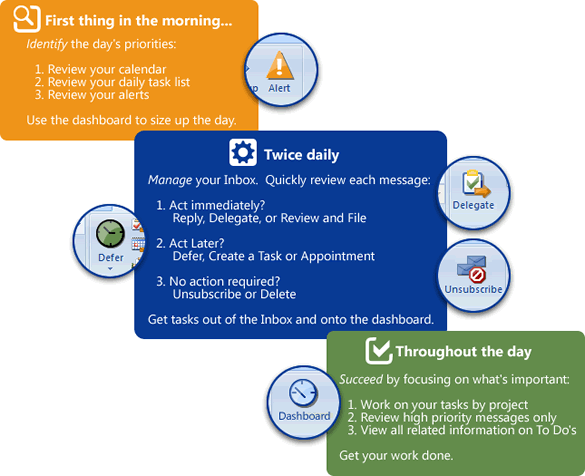
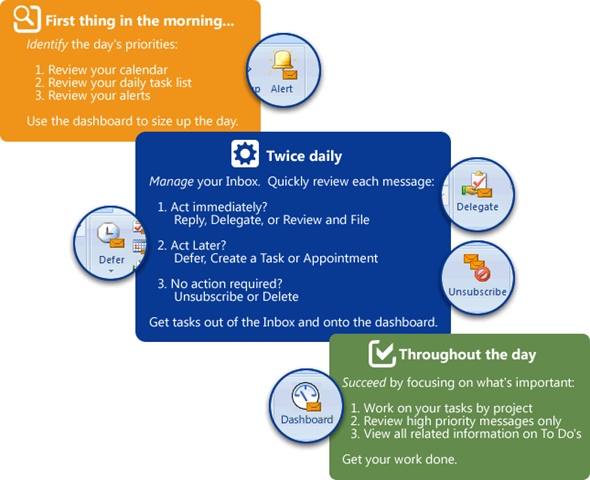
 The ClearContext Daily Workflow is a three step process for managing Outlook that will save an hour or more per day. We developed these best practices in conjunction with productivity experts and our very passionate customer base to help overloaded individuals empty their inbox and get on top of their workday:
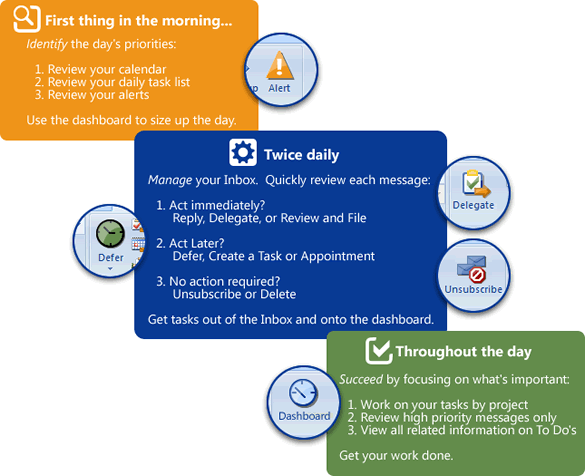
 First thing in the morning, identify the day's priorities:
- Review your calendar
- Review your daily task list
- Review your alerts
 Twice daily, manage your Inbox:
Quickly review each message and determine when you need to act on it:
- Act immediately? Reply, Delegate, or Review and File
- Act later? Defer, Create a Task or Appointments
- No action required? Unsubscribe or Delete
 Throughout the day, succeed by focusing on what's important:
- Work on your tasks by project
- Review high priority messages only
- View all related information on To Do's
Over the next few days, we will review each step in more detail.
Posted by brad at 2:11 pm on September 8th, 2009.
Categories: daily_workflow, ims, tips.
Over the last several years we have been working with experts in the field of productivity along with a very passionate and vocal customer base to develop a world class productivity tool to help ease the burden of information overload. Along the way, we have collected a series of best practices for managing information and squeezing more productivity out of the day.
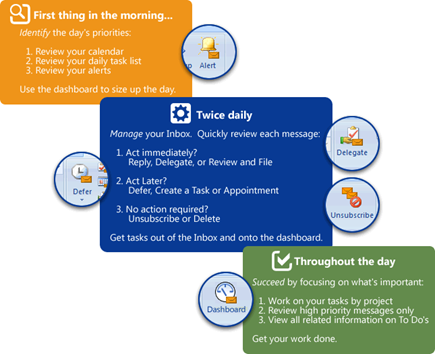
 In conjunction with the IMS v4 release, we have distilled these concepts into a process to help our customers get the most out of the product. The result is the ClearContext IMS Daily Workflow, a three step process for managing information that will help save an hour or more per day:
First thing in the morning, identify the day’s priorities:
- Review your calendar
- Review your daily task list
- Review your alerts
Twice daily, manage your Inbox:
Quickly review each message and determine when you need to act on it:
- Act immediately? Reply, Delegate, or Review and File
- Act later? Defer, Create a Task or Appointments
- No action required? Unsubscribe or Delete
Throughout the day, succeed by focusing on what’s important:
- Work on your tasks by project
- Review high priority messages only
- View all related information on To Do’s
We believe in the benefits of productivity methodologies such as Total Workday Control and Getting Things Done. The IMS Daily Workflow doesn’t replace these methodologies, but rather provides a framework to hit the ground running with IMS. We still recommend that you take best practices from all of these methodologies to find something that works best for you.
The IMS Daily Workflow is the culmination of years of development with our customers via product and process feedback, forum participation and weblog conversations. We will be expanding each of these steps in great detail via the weblog in the coming months. In the meantime, check out our Solutions Pages for more detail.
Up Next: Identify the day’s priorities…
Posted by brad at 9:06 am on November 28th, 2007.
Categories: daily_workflow, ims.
 We’ve updated our User Guide to include new features for v4, including the IMS Dashboard, Alerts, Do Not Disturb and Toolbar Management. The downloadable PDF of the User Guide includes additional information about the IMS Daily Workflow.
Posted by brad at 2:01 pm on November 15th, 2007.
Categories: announcements, clearcontext, daily_workflow, ims, product, tips.