We are pleased to announce that the redesigned Project Dashboard has been released to production. As we mentioned in our last post about the beta preview, the new Dashboard features a new large format Project details screen that makes it easier to view, find and manage your Project information. This first phase of the Dashboard is focused primarily on improving the existing functionality of the Dashboard. Future releases will build on this base with additional features and capabilities.
This update is rolling out to all users now, and with no further action, ClearContext will automatically update itself soon. If you don’t want to wait, you can go to the ClearContext->About screen, and click the link to check for updates.
We hope you enjoy using the redesigned Project Dashboard and we look forward to delivering more improvements we have in the pipeline!
Posted by ClearContext at 4:13 pm on August 22nd, 2017.
Categories: Uncategorized.

A Beta preview is available for the new ClearContext Dashboard. The Project Details mode of the Dashboard has been redesigned for easier and faster access to the Project and Context Category details. The summary of differences from the previous version are:
- Access to the details are simplified by simply clicking on a Project or Context Category in the Summary Dashboard to open a new window with the details, instead of double clicking to switch to a new tab/mode. Clicking on a different Project/Category will update the existing window, while clicking on the same Project/Category will toggle the detail window closed
- The details windows are in a large screen format so that all the information is visible on one page without having to navigate to a different tab/mode
- The task interface works like the Organizer interface, allowing for the display of more information, sortability, and in-place editing and creation of tasks
- Task contents can be previewed by hovering the mouse cursor over the subject. Available in both the summary and detail Dashboards as well as the Organizer
- Appointments are listed separately from Tasks for easier differentiation
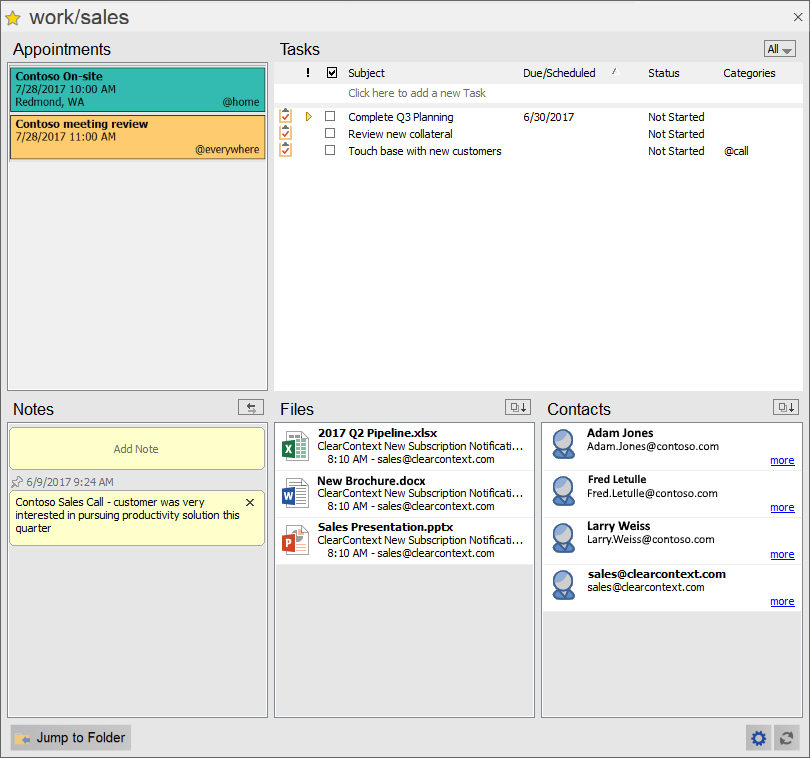
Pictured: Detail Dashboard for folder based Projects. Processed Mail mode does not show Files or Contacts, and the Context Category details only show tasks.
Users who have opted in to the Fast/Beta update channel have already been automatically updated this beta preview. If you would like to try the Dashboard preview, please go to your ClearContext Account screen in Outlook and enable the Fast/Beta updates. Then for an immediate update, select the check updates link in the ClearContext->About screen. Starting with this Beta build, the Beta setting has become its own separate option in the screen. If one wants to revert back to the production version at any time, the Beta option can be un-selected and the production version will be enabled.
We hope you enjoy this preview of the new Dashboard and look forward to your feedback!
Posted by ClearContext at 3:33 pm on July 21st, 2017.
Categories: Uncategorized.
We have had a number of product updates released and automatically installed to the product so far this year and wanted to put out a quick note to make sure everyone knows about the new functionality.
- Search capability in the Organizer

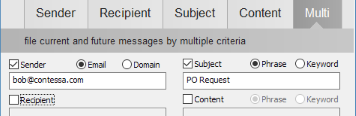
- Support for using multiple criteria in AutoFile
- MessageContext:
- add ability to delete message and complete tasks
- improvements to load performance
- adjust UI layout for better space efficiency

- Add Next Action to QuickTasks
- MYN support and integration
- Multi monitor improvements
- Duplicate Followup detection
- Manual product update check and option for beta/fast updates (as described in our last post)
- Many other bug fixes and tweaks
If you don’t see every item here reflected in your installation, it is most likely en route to your computer and will show up shortly. You can also force an immediate update by going to the ClearContext About screen and clicking the Check for Update link. We have another update in the queue to be released soon, and beyond that we may lengthen the release interval slightly to work on some larger feature updates.
Posted by ClearContext at 1:47 pm on April 25th, 2017.
Categories: Uncategorized.
One of the great improvements in the new ClearContext is the automatic product update process. Users don’t need to worry about checking what the current product version is, and tracking down, installing and possibly having to purchase a new version. This also helps us by streamlining the release process and making it possible to provide more updates more often.
For the most part, obtaining updates don’t require any attention. Once an update has been applied the product, a notification will usually be inserted into the Inbox noting the changes and improvements applied. The appearance of this notification is how one can know that the product has been updated.
For those who want updates as soon as possible and are willing to deal with some occasional rough edges, there is an option available for “Beta/Fast Product Updates” in the ClearContext Account screen in Outlook. When enabled, general updates will be delivered a week or two before everyone else. Also, when beta features are available, they will only be delivered to those who have selected this option.
Stay tuned, as we have a lot of great updates planned for the year!
Posted by ClearContext at 2:21 pm on February 23rd, 2017.
Categories: Uncategorized.
Just a quick note to let folks know about our new help portal: help.clearcontext.com. We have improved the knowledge base with updated information and easier search functionality. Support can also be contacted directly from the help portal as well. If you are having technical issues, we recommend using the link in the ClearContext->Help screen in the product, as that will include some diagnostic information that will aid in assisting you.
Posted by ClearContext at 2:41 pm on November 14th, 2016.
Categories: Uncategorized.
Is your inbox stuffed with Facebook updates, Linked in requests, shopping offers, newsletters and all manner of flotsam? Do those emails coming in obscure the emails you need to deal with, or even worse distract and pull you away from things you need to get done? Some sources estimate that more than 80% of emails received are these types of automated, low priority messages.
ClearContext Autofile can help thin out this morass of non-urgent email. AutoFile quickly and automatically declutters your inbox so that you can focus on what’s important and get things done. Out of the box, Autofile has built in filing rules for the many common sources of automated email including Facebook, Twitter, Tumblr, LinkedIn and Evite and many more. Additionally, additional sources of unimportant email you receive can be added instantly with one click – diverting all future email out of your Inbox.
ClearContext reports on these AutoFiled emails once a day in a digest, so they don’t get lost or forgotten. Instead, you can review the list of these emails efficiently at the time best for you. It’s hard enough keeping up with the constant stream of emails arriving in your Inbox without all the distractions – ClearContext can help condense down your incoming messages to those that are most important.
Posted by ClearContext at 2:28 pm on September 26th, 2016.
Categories: clearcontext, daily_workflow, productivity.
ClearContext makes filing emails to a Processed Mail folder while tagging them with a Project easy, often with just one click! Michael Linenberger’s MYN system recommends filing all emails to a single Processed Mail folder so that you can easily view all of your filed email by different criteria. By using the grouping and sorting built into Outlook, one can easily change the view of the folder by category, sender, or other criteria. And since ClearContext automatically tags Projects into the category field, emails are viewable grouped into Projects as well.
The MYN version of ClearContext Professional is configured for one click filing to the Processed Mail folder by default. Users of the standard version of ClearContext Professional can also take advantage of this capability by going to the ClearContext Options screen, setting the root filing folder to “Processed Mail”, and checking the option to file all messages to this single folder.
ClearContext’s smart filing features are one of many capabilities that help you clear your Inbox faster and easier, regardless of whether you prefer the MYN Processed Mail filing system, or traditional filing to separate Project folders.
Posted by ClearContext at 3:17 pm on July 12th, 2016.
Categories: productivity. Tags: Master Your Now, Michael Linenberger, MYN, Total Workday Control.
ClearContext has special task, schedule and follow up features that make processing emails into actionable work quick and easy. Tasks can be created from emails by pressing the Task button. A task window pre-populated with information from the email will pop up and the start date can be set for FRESH prioritization. If you have a due date you can optionally add that to the task name. Another convenience is the option to automatically file the original email into the Processed Mail file and assignment of a category/project at the same time.
Appointments can be scheduled in a process similar to the Task button with the Schedule button under more actions on the ClearContext toolbar. In the same way, the appointment parameters can be set, the original message filed to the processed mail folder and assignment made to a category/project all from the same step.
Follow up tasks are used to make sure a response has been received to a sent email. While composing an email, the Followup button can be selected on the ClearContext toolbar/menu to automatically create a follow up task when the email is sent. This follow up task will have the original email attached and named “Followup:” plus the original email subject. Conveniently, this follow up task will automatically be completed if the recipient replies to the email, saving time and effort for checking up on important emails.
The Task, Schedule and Followup features are just a few examples of how ClearContext can help you become more productive with getting your work done in Outlook and with Michael Linenberger’s MYN.
Posted by ClearContext at 3:28 pm on June 30th, 2016.
Categories: productivity. Tags: Master Your Now, Michael Linenberger, MYN, Total Workday Control.
The Master Your Now (MYN) version of ClearContext saves you time in implementing Michael Linenberger’s MYN methodology in Outlook because it come configured out of the box with the 11 views outlined in Michael’s book Total Work Day Control using Microsoft Outlook. It contains the essential To Do Bar view as well as the email filing view and the advance views. This automatic set up of these views will save your tedious and time consuming work and will speed you on your way to getting your inbox and your life under control. Full information on the MYN version of ClearContext can be found here: clearcontext.com/myn
We also offer the MYN views in a simple standalone product. This product can be used by itself to install and maintain the MYN views, or together with the standard version of ClearContext Professional. For more information on the MYN views utility, please visit mynviews.com
Posted by ClearContext at 3:03 pm on June 24th, 2016.
Categories: productivity. Tags: Master Your Now, Michael Linenberger, MYN, Total Workday Control.
The installer issues on the original v7.1.1 release have been resolved, and v7.1.1 is again the current ClearContext version. The product itself in the updated v7.1.1 release hasn’t changed from the original v7.1.1 release, but the digital certificates have been updated to the latest standards required by Microsoft.
Because the digital certificate is new, a SmartScreen warning that this is an unrecognized download may show. If you see this please proceed by clicking the “more info” link, then clicking the “Run anyway” button.
Posted by ClearContext at 2:08 pm on May 31st, 2016.
Categories: announcements, clearcontext.