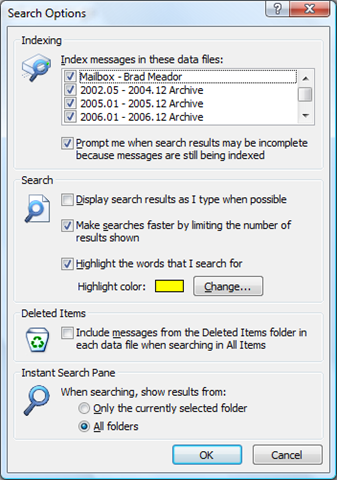
 There are two changes to Outlook 2007’s search behavior that I make within minutes of a new install that speed up my ability to get to the results I want. In Search Options (accessed from the arrow to the right of the search box in the Inbox
  ):
):
- Under Search, uncheck "Display results as I type when possible." I have never found this to be useful and it delays my desired results.
- Under Instant Search Pane, click the radio button next to "All Folders." 99% of my searches start in the Inbox, but I’m looking for messages elsewhere in my mail file. This eliminates the need to click the "Try searching again in All Mail Items" link.
Also, while you’re there, make sure that all of your Archive PST’s are checked in the Index list.
Even with increased speed the search in outlook 2007 is still very slow. And searching PST-Files takes very long. I have a lot of huge PST-files so I need a fast search tool and I think I found it http://www.lookeen.net
Posted by Oli on May 23rd, 2009.